
Create a Route Using the Map
This article explains how to draw a map boundary on the large map and create a new route using the map markers inside it.
Before You Begin
You must have TeleRoute and Routing to create a list from the large map. You must have something on the map for Trash Flow to use when creating the list: a route, customers, work orders, or container placements.
Draw the Map Boundary
-
From the Trash Flow tilebar, click TeleRoute > Routes > Show a Route and search or select one of your routes. The large map opens.
Tip: The large map can also be opened from:
-
A container placement
-
The TeleRoute button
-
The Dispatch window
-
The Map tab on a customer account
-
-
Click the boundary button at top right of the large map, then choose whether to draw a polygon or a circle.
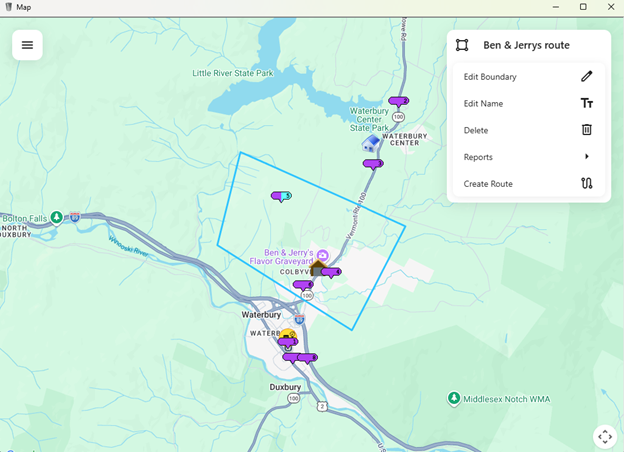
For a Polygon Map Boundary
-
Click a point on the map to set the starting point of the shape.
-
Move the cursor and click another point to draw a line between the two points.
-
Continue clicking to add points and draw lines around the area you want to enclose.
Note: Do not cross or overlap any lines you have already drawn.
-
To finish, click on or near the starting point. The boundary will close and form a complete polygon.
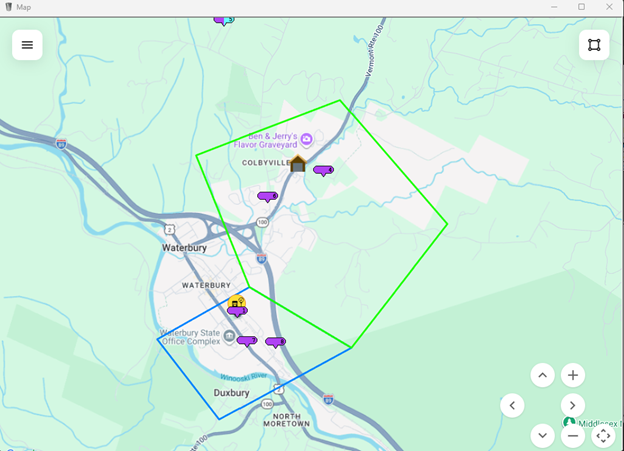
Note: When drawing a polygon, new points can snap to nearby points on existing polygons, placing the point at the same location while allowing the polygons to remain separate map boundaries. This helps prevent small gaps between boundaries that could result in missed stops.
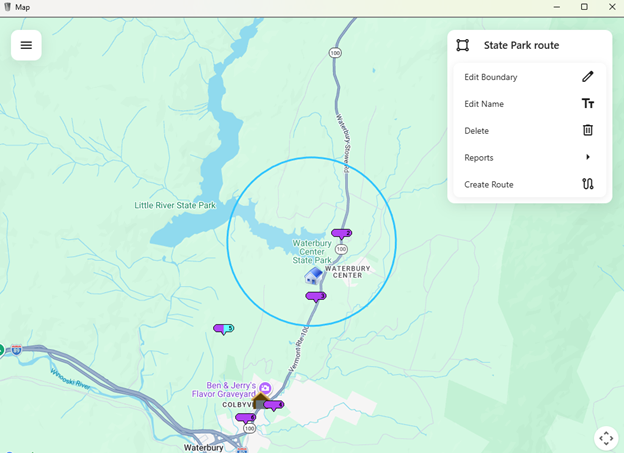
For a Circle Map Boundary
-
Click the center of the area you want to enclose.
-
Move your cursor outward to adjust the circle’s size.
-
When the circle is the size you want it, click to create your map boundary.
-
-
A window appears. Click in the New Boundary Name field and enter a name for your map boundary.
-
Click OK.
-
A window appears readying "Boundary saved successfully!" and the boundary menu changes to show the name and a list of available functions. Click OK to finish.
Create the Route
-
Click on the new boundary to display the boundary menu in the top right corner of the map, then click Create Route.
Note: If you need to select a different boundary, navigate to the three-line button at top left, click Boundary Key, and select a boundary from the list.
-
Click Create a Route.
-
Enter a name for the new route and use the checkbox to optimize the route if needed.
-
Click OK to finish.
When You're Done
The new route is created in Trash Flow. It's sorted based on the order in which you add different pins to the map.
A circle map boundary will look like this:
A polygon map boundary will look like this:
Two polygons snapped beside one another will look like this:
Example: Drawing shapes on the map
How to draw a polygon
See Also