
View Container Placements On a Map
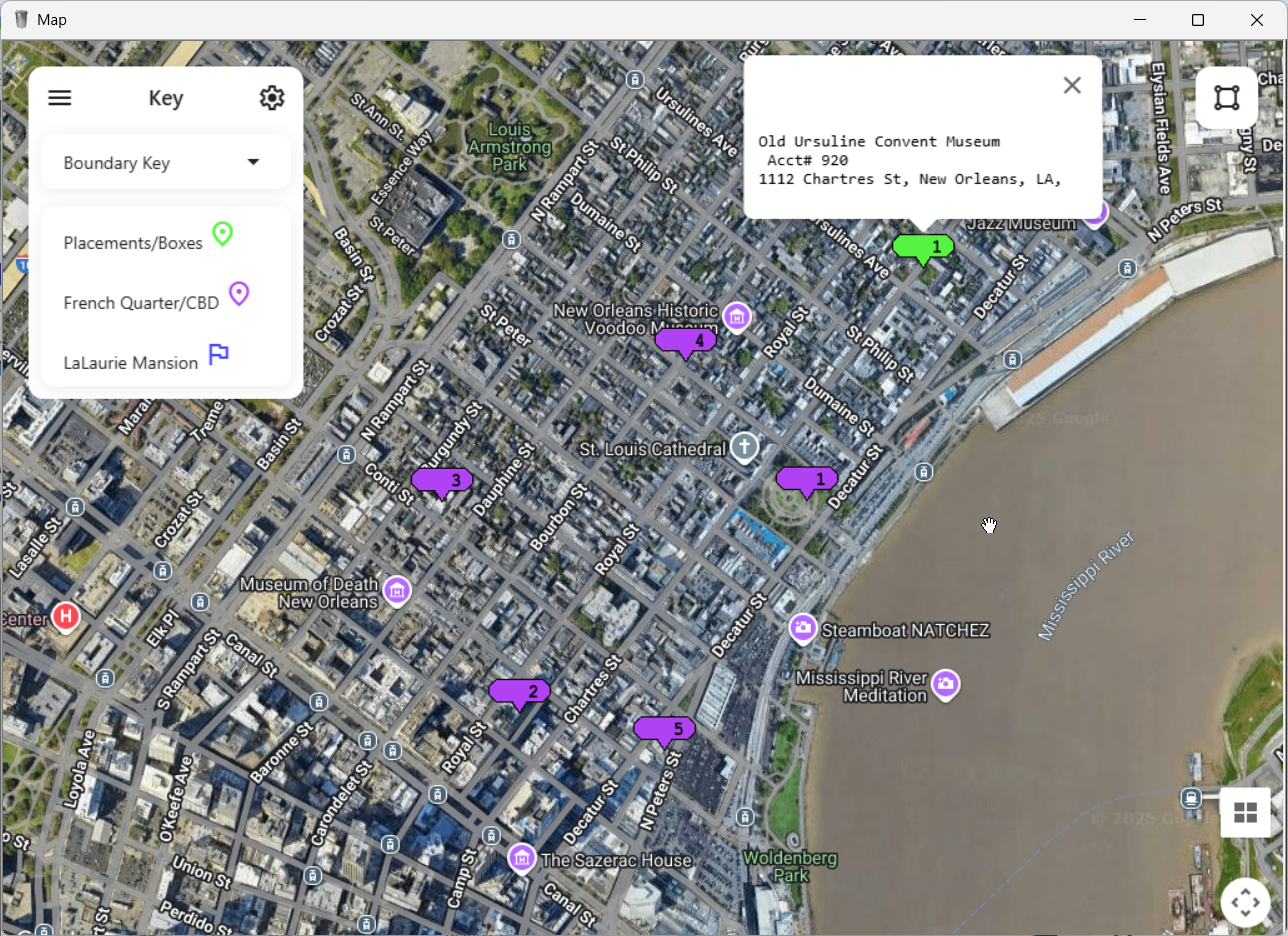
This topic explains how to view container placements in the large map window.
Common Uses
The large map can show customer addresses, route stops, container placement addresses, and more. Uses might include:
- Looking for containers that might be ready to empty;
- Scanning the map to spot container locations that were mapped to the wrong place;
- See where your C&D containers are around your service area.
Before You Begin
You must have Trash Flow's Containers module and TeleRoute to view container placements on a map.
View the Placements
- Click.
- Use the data filters on the next window to choose which placements you want to see. A list of all data filters is provided below.
- Click to view the placements.
Reference: Data Filters
The options here choose which container placements should be shown.
- Truck Type: Chooses whether to include placements meant for a rear load, front load, roll off, cart, compactor, portable toilet, trailer, hooklift, or other container.
- Service Type: Chooses whether to include portable toilets, washouts, or placements meant for solid waste, recycling, C&D, compost, waste oil, or other services.
- Size: Enter a number here to include only containers of a certain size, e.g. 4-yard or 30-yard.
- Container Status: Chooses whether to include all placements or only placements with or without an assigned container.
- Address Search: Fill the field(s) here to include only customers on a given street or in a given city, state, or ZIP code.
When You're Done
All placements that meet the criteria you chose appear on the map. If the large map window was already open it retains whichever customers, routes, etc. were already being shown. The map uses different colors to distinguish between different sets of customers, routes, placements, etc. Trash Flow uses the colors purple, green, blue, coral, orange, red, and yellow, in that sequence.
See Also