
View a Customer's Calendar
This article explains how to view the calendar for a customer's account. The calendar includes both activities that changed their account and those that are scheduled for the future.
Common Uses
The calendar does not contain any new information about a customer's account, but pulls information from different places in Trash Flow and displays them on a calendar. Uses might include:
- Tell a customer when they're getting their next route pickup.
- List the dates and locations for all their roll-off work orders this week.
- Check the timing of customer messages against recent TeleRoute activities (picked up, trash not out, etc.).
- Determine whether there's a consistent day of the month they pay their bill.
- Confirm that they're being billed when expected.
- Look for recent changes to the customer's account (rate changed, route switched, moved to a different bill group, etc.).
- Check the date an email bill was sent and whether the email got a bounceback notice.
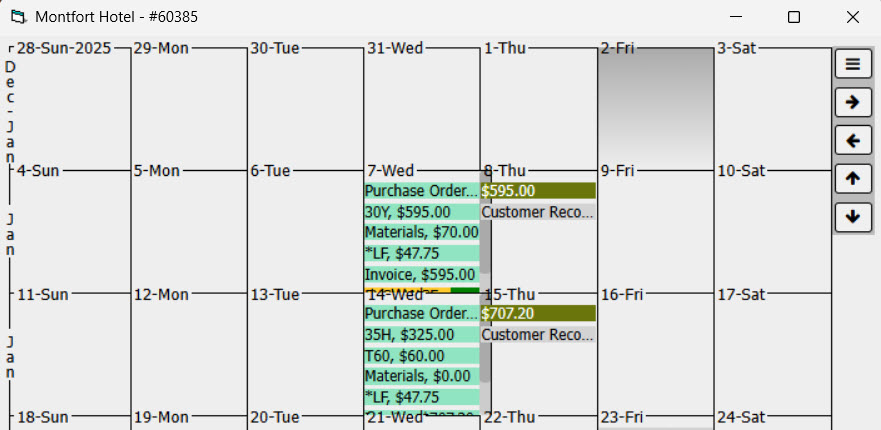
Example of a customer's calendar
View the Calendar
- Open a customer's account
- Click .
- The calendar window opens.
When You're Done
The calendar shows the following information for a customer account.
-
CHARGES
 (both regular billing and one-time charges)
 -
PAYMENTS
 (from any source)
 -
BILLS
 (any time a bill is printed or emailed)
-
CUSTOMER RECORD CHANGES
 (events on the Activity History tab/Customer Event report)
-
WORK ORDERS
 (past and future; these appear on the Scheduled date, which is not necessarily the date it was Created or Requested)
 -
MESSAGES
 (both customer messages and email bouncebacks)
The calendar months are listed on the left edge of the window. You can change the date using your cursor keys or the arrow buttons  .
. 

 . Hovering over any calendar item gives additional information about the event. A reference section listing what appears when hovering on different event types is included at the bottom of this page. Double-click on a TeleRoute image notification to open the picture.
Click the three-line menu button at top right to access further Settings. You can enter a date you want to check and click , if desired. Use the dropdown menu to change which day the week starts on. Click for an explanation of the colors in the customer calendar.
Legend for Calendar
The color of each item tells you something about the event; a legend of the different meanings appears below. The main body color of the event shows on the left, with any flag colors that further explain the event on the right.
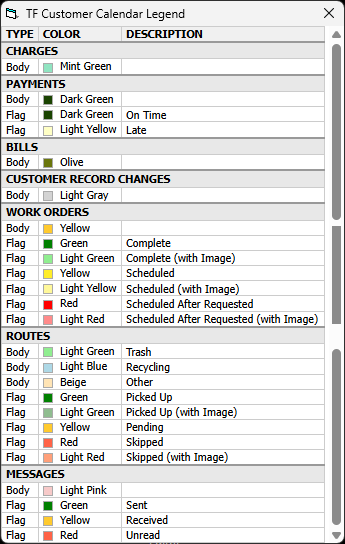
Example of a Calendar Item with a Flag
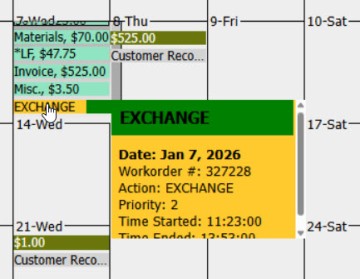 This customer had a work order to exchange a container on Wednesday the 7th. The yellow background on the word EXCHANGE tells us that this entry is a work order; the flag (green bar) to the right indicates that the work has been completed. Hovering over the item shows a tooltip with more details. The charges on the same day (mint green background) came from a user financially completing that work order to charge the customer.
Version 3.02.097: Calendar released
See Also