
Configure Notifications
This topic explains how to set up user permissions to see different notification types. You can set these up using departments, or you can set them up individually.
Note: All these steps are optional: if you skip this process then All Trash Flow users will see all notifications.
Create Departments and Assign Users
If desired you can enter different departments for your business: billing, routing, customer service, dispatch, etc. This allows you to assign users to the correct departments so they see only the notifications relevant to their position. Users can be assigned to more than one department.
- Click .
- Click .
- Enter the name of the new department and press ENTER.
- A window appears with the name of the new department; click .
- Click Users > Multiple.
- Select the users you want to add to that department and click.
- Click and repeat these steps as needed.
Assign Permissions to Departments and Users
Whether or not you create departments you can grant permissions to users in the System > Maintenance menu. This allows users to see only the notifications relevant to their position.
- Click .
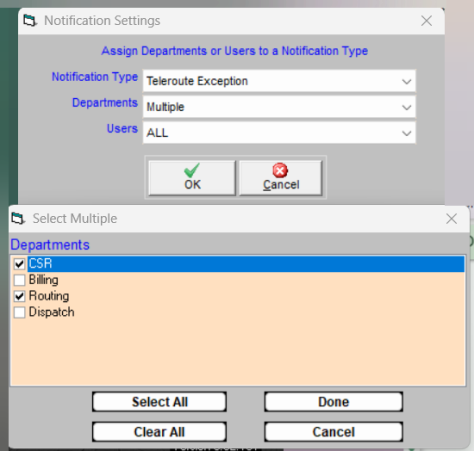
- Click the dropdown and select one of the options.
- If assigning permissions to departments follow steps 4–6. If assigning permissions to individual users follow steps 7–9.
- Click the dropdown and click .
- Select the department(s) that should see that notification type and click .
- Repeat as needed and click .
- Click the Users dropdown and click .
- Select the notification type(s) that user should see and click.
- Click and repeat these steps as needed.
When You're Done
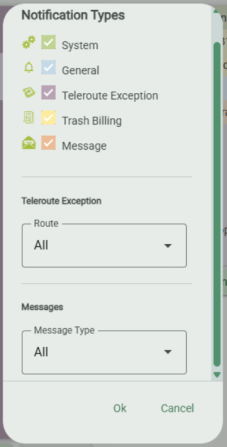 The Notifications window shows users only their assigned notification types. Within that window users can also filter the view further. You can choose to view:
- only certain notification types;
- only exceptions from a given route; and/or
- only customer messages or bounced email messages.
Trash Flow does not save these settings to use in the future. They will be reset when you close the Notifications window.
See Also