
Create a TeleRoute Landfill Report
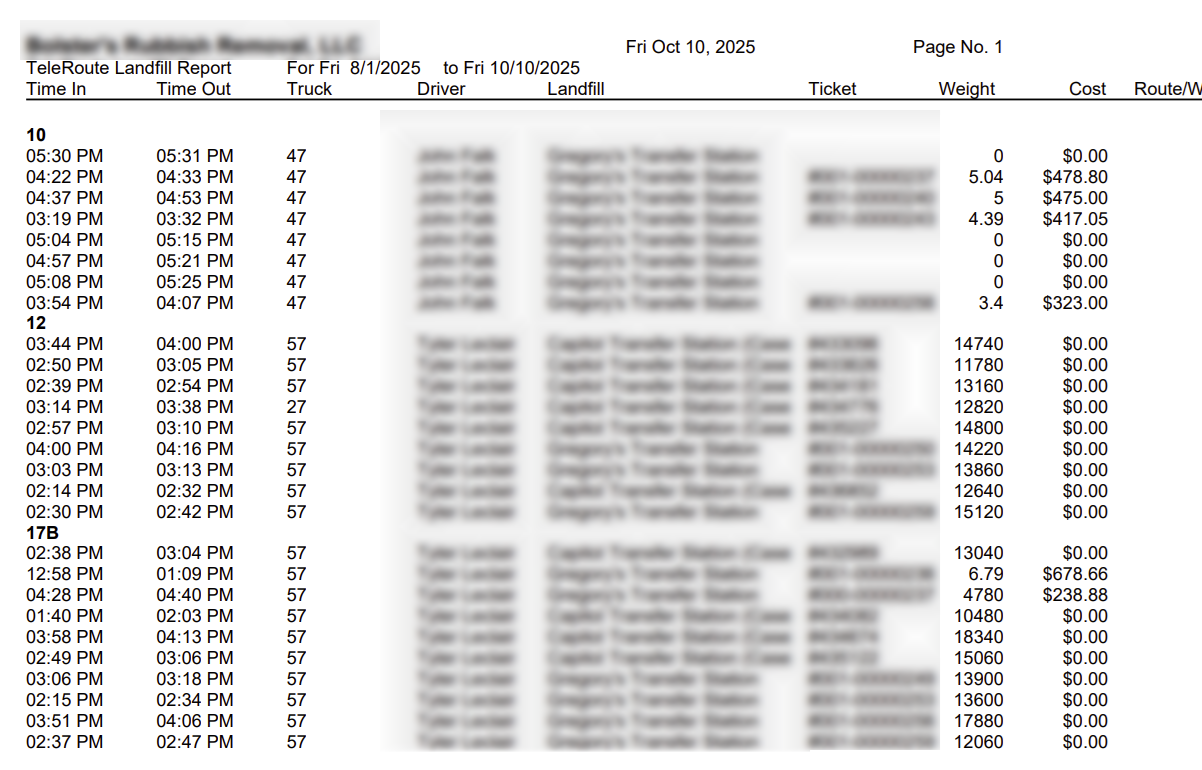
This article explains how to create a TeleRoute Landfill Report. This report displays data including time in and out, truck and driver details, landfill and ticket information, weight, cost, and route or work order. You can use the TeleRoute Landfill Report when tracking trips to landfills over a period of time.
Before You Begin
You must use TeleRoute, and your drivers must have entered landfill tickets into the TeleRoute app to run this report.
Context
The TeleRoute Landfill Report uses the data from your TeleRoute app to track visits to a landfill, material weight, and the cost of each visit over a chosen period of time.
Create the Report
-
From the Trash Flow tilebar, click Reports > TeleRoute Reports > TR Landfill Report. The TeleRoute Landfill Report window opens.
-
Click the arrow buttons to select Start Date and End Date.
Tip: Right-click on the arrows to move backward or forward one week.
-
To sort data, click the drop-down menu labeled Sort by and select date, driver, landfill, route and work order, or truck. This menu defaults to sorting by date.
-
Use the drop-down menus labeled Truck, Driver, and Landfill to filter the report data. Each menu defaults to ALL, which selects all available items. You can also select Multiple, which opens a separate window where you can choose specific items to include.
-
Begin typing the name of your route in the entry field labeled Route. The Route window will open and display your route options. Double-click the route you want to show on the report. The Route window closes and your selected route appears in the entry field.
-
Use the drop-down menu labeled Recorded from to sort landfill trips recorded from routes, work orders, or both.
-
Click the Include Notes checkbox to show notes and the Show Report Criteria checkbox to display the information used to generate the report.
-
Use the drop-down menu labeled Report Format and select Printout or Export to CSV.
-
Click the Preview checkbox to create a PDF preview of the report before printing or exporting it to CSV.
-
Click OK. The TeleRoute Landfill Report opens.
When You're Done
See Also
For more information on creating TeleRoute Reports, see the following articles:
Create a TeleRoute Activity Report
Printing a Missed Stops Report