
Back Up And Restore Your Data
This topic explains how Trash Flow automatically backs up your data and how to create or restore data if your computer is not online.
Guide To Offsite Backup Functions
Trash Flow saves a copy of your data at least once a day provided you have a service contract and your computer is online. Most of the time you will not have to think about backups and will rarely need to use any of these functions. The window below shows the available commands.

Refresh Backup List
All available backups are listed on the left: the date and time, size of the backup, and whether it was created automatically (every night) or manually (a user clicked the button to make a fresh backup). If you think a coworker might have made a new backup recently, especially if they work in a different office, you can click to make sure you're seeing the most recent information. As more cloud backups are saved from day to day older ones are eventually deleted automatically to make room. Safety backups and any backups made by a user are deleted from the cloud after a week (though you can always save those to your local computer if desired.) You can always access the following.
- All backups from the past 14 days, run automatically in late evening;
- Weekly backups from the past 3 months (these are saved every Monday morning);
- Monthly backups from the past year (these are saved on the 1st of the month.
View Backup
Viewing a backup allows you to compare a past backup with your current data. Trash Flow downloads the backup, saves it to a new temporary database, and opens a second instance of Trash Flow. This "view only" data will have a warning in red at the top of Trash Flow: “<Date> Backup Data All changes will NOT be saved”. Safeguards are in place to prevent you from accidentally working in the data you're viewing. Data Daemon, a small program that runs behind the scene in Trash Flow sending and receiving data, does not run. The following functions in Trash Flow are not available:
- entering payments;
- sending info to the web;
- picking up web payments;
- sending an autopay batch;
- uploading routes;
- sending and receiving driver messages;
- reversing a Trash Billing payment;
- sending and receiving customer messages.
Restore Backup to Cloud
This function restores a previously saved backup file to your live data on the cloud database. Note: Any changes you have made since the backup was created are lost when restoring the backup: payments (including Trash Billing), new customers, route changes, billing, etc. If you have any doubts at all then call us at 800-708-8642.
- Click .
- Select the file you want and click .
- A message appears warning you about what happens when you restore a backup; click to continue.
- A confirmation window appears once the backup is finished restoring; click and reopen Trash Flow.
Download Backup
This function lets you save a copy of your cloud backup to your local computer or network. The usual reasons to do so are that you know your computer is going to be offline, that you need to report business information to an outside auditor, or if you are concerned that you might not be able to access our cloud servers.
- Click .
- Select the file you want and click .
- Choose the location you want for the backup file and click.
Create Local Backup
(please note that this function is used to save a new backup file locally or on the cloud)
This function is mostly used when you are about to do something that will affect many customers at once (monthly billing, moving customers between bill groups, suspending accounts for nonpayment. Some users also want to save backups locally for peace of mind in case they somehow lose access to their data. Note: if you plan to save a backup of your cloud data to your local or networked computer we advise letting it run overnight rather than during the business day. The process runs slowly and on large sets of customers could lock the database for hours
- Click .
- A new window appears; click .
- A message appears warning you that the database will be locked while the backup is created; click to continue.
- Do one of the following: if you want to save this backup to Trash Flow'scloud server check Save to CloudOSBU. If you want to save the backup to your local computer or network click , choose where you want to save the file, and enter the desired file name.
- Check Skip Images if you want Trash Flow to leave TeleRoute images out of the backup so it finishes more quickly.
- Click .
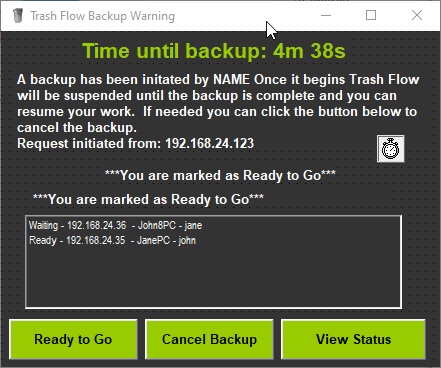
- Note: if you are the only person using Trash Flow skip to step 8). A message appears warning you that all users will be unable to work in Trash Flow until the backup is complete.
- All users currently using Trash Flow get a warning that a backup will start in 5 minutes. They can save their work and click to continue.
- A new window appears displaying the backup progress, going through every table in the database one at a time.
- Once the backup is complete a confirmation window appears; click.
Restore Local Backup
This function restores a previously saved backup file from your local or networked computer, overwriting your live data on the cloud database. This should be used very rarely if at all—there are few circumstances where you would want to overwrite your live data with an older backup. Note: Any changes you have made since the backup was created are lost when restoring the backup: payments (including Trash Billing), new customers, route changes, billing, etc. If you have any doubts at all please call us at 800-708-8642. iI you plan to restore to your local or networked computer we advise letting it run overnight rather than during the business day. The process runs slowly and could lock the database for hours
- Click .
- A new window appears; click ..
- A confirmation window appears; click to continue.
- Choose the folder where you saved the backup, select the file, and click .
Make Safety Backup
Making a safety backup is a quick way to ensure that if you are about to affect a large number of customers at once (billing a lot of people, moving customers between bill groups, suspending all overdue customers, etc.) you can easily revert back to the data before you made the change. Please note that safety backups are deleted after one week.
- Click .
- A new window appears; click .
- A notification window appears; click OK and continue to work as normal.