
View Route History
This page explains how to view the history of a route run by a driver in TeleRoute.
Before You Begin
You must have the Routing module of Trash Flow and drivers must use our TeleRoute service to record route history.
Context
When drivers use TeleRoute they record when they start and stop a route and what was done at each stop in between: Picked Up, Trash Not Out, Bin Blocked, or Stop Skipped. They can also add notes, save pictures, and enter other relevant information like fuel stops and landfill trips. You can review the history to:
- add extra charges to accounts
- check that the driver followed the correct order
- see if you need to call customers
-
confirm pickup times
-
look for areas where you might want to change the pickup order
Steps to Follow
- Click and open a route.
- From the route window right-click and point to Route. The menu shows two options for viewing your route history:
choose View History As Planned to view the stops in the order they appear in the route window, or
- choose View History As Run to view the stops in the order the driver recorded..
- Choose the date the route was run.
When You're Done
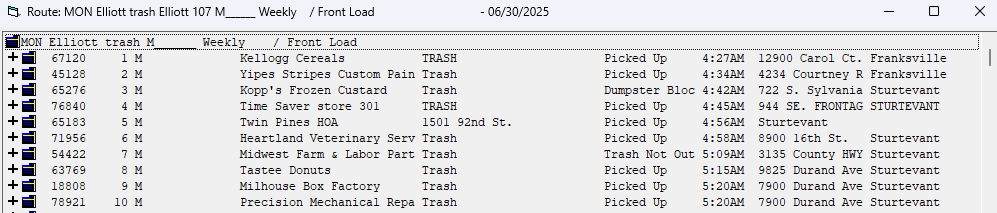
The route window changes to include the activity recorded and timestamp when it was entered on the tablet. The context menu also changes, giving you the following choices when you right-click:
- Charge Route
- View Route Activities On Map
- View Truck Travel On Map
- Reorder Stops Based On History
- Exit History View
See Also
Running a Route With TeleRoute