
Add or Change Bill Codes and Recurring Charges
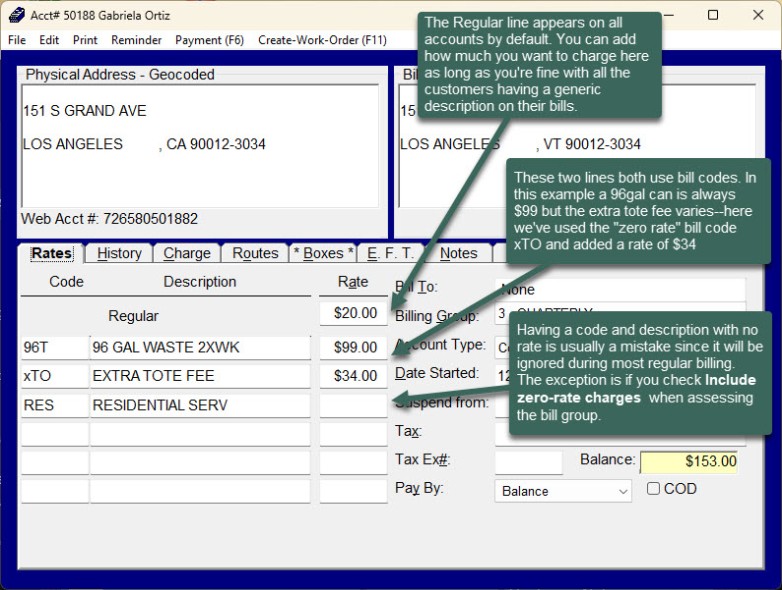
This page explains how to add or change a customer's bill code(s) or rates for regular, recurring trash service. Any charges set up on the Rates tab are charged to the customer when you assess regular charges as part of your billing. If you need to make one-time charge to a single customer see instructions at Making a One-Time Charge.
Before You Begin
You will need any of the Billing modules of Trash Flow to use this feature. We advise using bill codes when charging customers; adding rates to customer accounts will be faster if you create the bill codes you think you'll need first.
Add a Bill Code
- Open a customer account.
- On the Rates tab click an empty field in the Codes column.
- Start typing the name of the code you're looking for (or press the SPACEBAR); the list narrows as you type more details.
- Double-click the code desired (or press F2, F3, etc.).
- The description and rate from the code fills in. If this is a zero-rate code then enter the amount desired in the Rate column.
- Close the account to save all changes.
Alternative: Add a Regular Rate
Trash Flow comes with a few "transaction types" built in that do not require creating a bill code. You can see this list, and change the descriptions for entries, by clicking System > Setup > Standard Charges. Using this method of setting rates is less flexible than creating bill codes but it takes slightly less time.
- Open a customer account.
- On the Rates tab click the empty field to the right of the word "Regular".
- Enter the rate desired.
- Close the account to save all changes.
When You're Done
Going forward, Trash Flow will use the rates entered when you do billing. (Past transactions are unaffected.) Anytime you run billing by assessing regular charges Trash Flow goes through every active customer in the selected bill group. It goes down the Rates tab and adds those charges to financial history as long as there is both a description and a rate.
Further Resources
Adding or Removing Bill Codes For a Group of Customers