
Change Customers' Rates
This article explains how to change the amount of money you are charging a group of customers. We advise you to make a backup before doing a global price change.
Before You Begin
How you change customer rates depends on how they were set up in the first place. This topic details two cases to use the global price change tool ().
- Case 1: You use a zero-rate bill code—a bill code where the description is filled in for consistency but the rate is left blank. Using these means that you can set whatever rate you want per customer but you must remember to enter something; otherwise Trash Flow will charge them $0.00 during billing.
- Case 2: You don't use bill codes and simply enter the Regular rate you want to charge at the top of the customer Rates tab (or on some container placements).
There are two other ways to change customer rates that you might be searching for.
- Case 3: You set rates on the bill code itself (System > Setup > Lists > Bill Codes) and need to change that rate for everyone. You can simply pull up the code and change the rate there; it will be used for all future transactions.
- Case 4: You set rates on the bill code itself (System > Setup > Lists > Bill Codes) and want to change which codes are used on some customer accounts; please see this explanation of how to add and remove bill codes.
Steps to Follow (change zero-rate bill code)
- Click .
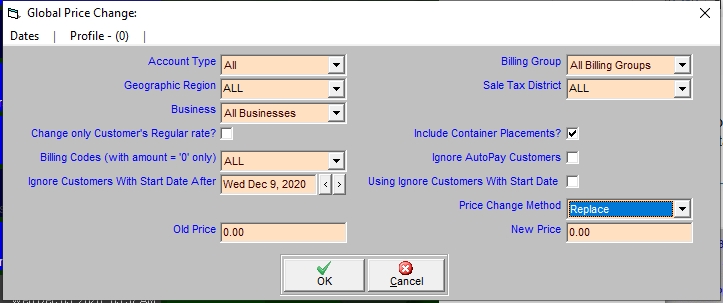
- Choose which Account Type(s), Billing Group(s), Geographic Region(s), Sales Tax District(s), and Business(s) the change should apply to.
- Choose if this change will Include Container Placements with that bill code.
- Choose if the charge will Ignore AutoPay Customers, skipping any customers with a saved autopay method.
- Choose whether the change will apply ALL zero-rate Billing Codes. If you don't want to affect all codes then choose Multiple in this dropdown and check only the codes you want to change. Click to proceed.
- Under Price Change Method choose one of the following.
- Replace the old price with a new one. Enter the original rate (Old Price) and enter the new rate under New Price.
- Add a flat amount. Enter the increase desired in Add amount. (To reduce rates you would use a negative number here.)
- Change the rates using a Percentage. (Note: If you want to offer cash discounts we advise that you use this method to increase rates.) Enter the change desired in the Percentage increase/−decrease field.(To reduce rates you would use a negative number here.)
- Click to complete the change and close the window.
Steps to Follow (change Regular rate)
- Click .
- Choose which Account Type(s), Billing Group(s), Geographic Region(s), Sales Tax District(s), and Business(s) the change should apply to.
- Check Change only Customer's Regular rate?. This makes Trash Flow ignore bill codes and only change the rate set up at the top left of customer accounts.
- Choose if the charge will Ignore AutoPay Customers, skipping any customers with a saved autopay method.
- Under Price Change Method choose one of the following.
- Replace the old price with a new one. Enter the original rate (Old Price) and enter the new rate under New Price.
- Add a flat amount. Enter the increase desired in Add amount. (To reduce rates you would use a negative number here.)
- Change the rates using a Percentage. Enter the change desired in the Percentage increase/−decrease field.(To reduce rates you would use a negative number here.)
- Click to complete the change and close the window.
When You're Done
Once the process finishes Trash Flow opens a report showing all of the accounts with changes. The new rates will be used on all charges going forwards.
Further Resources