This topic explains how to put a customer payment towards a specific invoice(s).
Before You Begin
You must have Trash Flow's Commercial Billing module to track paid vs. unpaid invoices. The customer account must be set to Pay by Invoice on the Rates tab. When sending bills to these customers it is expected that a user will choose one of the invoice formats, including new charges on a numbered invoice(s).
Context
Pay by Invoice customers are typically commercial accounts that, for accounting purposes, need to keep track of which invoices have been paid and which have not been paid. When a payment is entered on an invoice-billed account it is also either applied to a specific invoice or saved as Unapplied. Total unapplied payments are always visible on the upper-right side of the History tab of the customer information window. You can think of the Unapplied balance as money received from the customer but not yet assigned to pay down a specific invoice in their account. There are two possible sequences for putting payments toward an invoice although both use the same principle.
Steps To follow (Payment Already Made)
This describes how to take an existing payment(s) in the software and put it towards a customer's invoice. This can occur if a customer paid at the TrashBilling.com website without specifying an invoice, if an account is switched from "pay by balance" to "pay by invoice," or if a payment was put toward Unapplied because the user did not know which invoice to pay off.
- From a customer's Financial History tab, click .
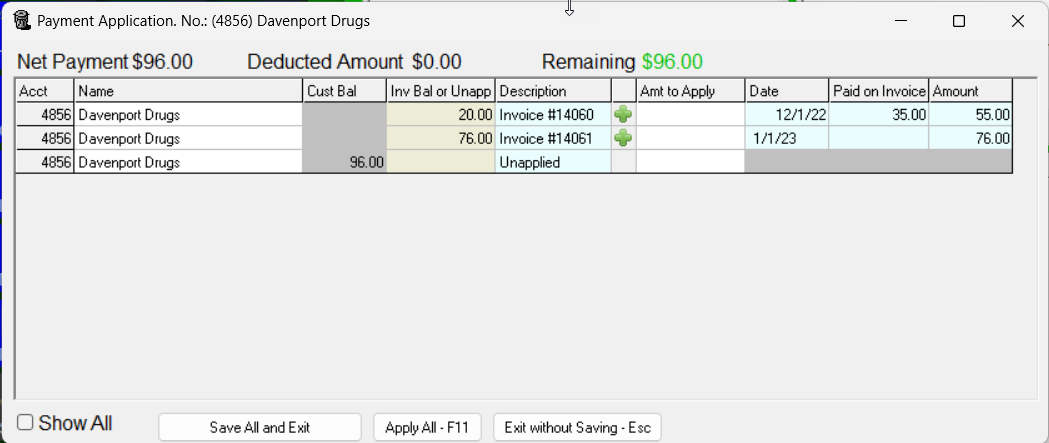
- Select one of the invoices in the window and press the green plus sign. (Trash Flow will usually default to paying the first invoice listed; you can click the red X next to the invoice number to undo it.)
- If enough money is available Trash Flow will enter the right dollar amount to pay off the invoice in the Amt to Apply column. If there's not enough it will enter the available unapplied.
- Once you have applied payments to as many invoices as you want, click .
Steps to Follow (Recording a Payment First)
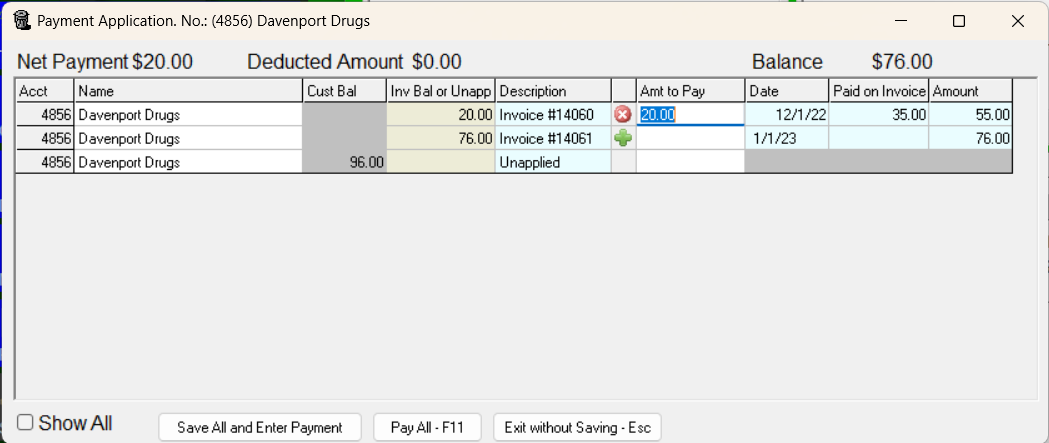
NOTE: If you use cash discounts there is one other thing to be aware of when entering payments. If the customer makes a payment for the cash price listed on the invoice you would still use the full invoice amount (the card price) when paying off the invoice. Using the example below, if they send a check for the discounted amount of invoice 14061 ($73.72) you would enter $76.00 in the Amt to Pay column. Trash Flow will automatically add the cash discount in the next screen where you will choose a payment method and record the payment. If a customer pays multiple invoices with cash discounts at once they may end up overpaying by a few cents. You can click Make Penny Go Away to reconcile the payment amount.,
This describes how to enter a new payment on a customer who is pay by invoice. The idea is that you will first choose which invoice(s) to pay, then record a payment to cover that amount.
- In a customer's account click in the menu across the top.
- Select one of the invoices in the window and press the green plus sign. (Trash Flow will usually default to paying the first invoice listed; you can click the red X next to the invoice number to undo it.) If the Amt to Pay should be less than the full amount of the invoice edit the field as needed.
- Repeat if needed to pay off more invoices. Note that there's a Net Payment at top left showing you how much the final payment will be based on what's been entered.
- When finished click . The Payment window will then open so you can enter the payment as usual.